Key Points
- Identify the source of the error: Recognize that the “This app has been blocked for your protection” message is a security measure triggered by User Account Control (UAC) or Windows Defender SmartScreen when an application lacks a verified digital signature.
- Utilize the file properties unblock method: Resolve blocks on individual downloaded files by accessing the General tab in the file properties menu and selecting the unblock checkbox to manually authorize the software.
- Execute apps via elevated Command Prompt: Bypass standard security restrictions by running the application through a Command Prompt window launched with administrator privileges to grant the software necessary system access.
- Manage reputation-based protection settings: Temporarily toggle off SmartScreen features within Windows Security to install or run flagged apps, ensuring all protection layers are re-enabled immediately after use to maintain system integrity.
- Apply advanced administrative overrides: Use the Local Group Policy Editor to modify Admin Approval Mode for enterprise environments, or utilize the hidden administrator account via Command Prompt to bypass strict administrative blocks.
Windows 10 may block apps from unknown publishers or potential threats. This process is based on security policies enforced by User Account Control (UAC) or Windows Defender SmartScreen. However, some legitimate apps, including older software or custom enterprise tools, can sometimes be incorrectly flagged.
If you encounter this issue and trust the app’s source, you may want to override the security message that says, ‘This app has been blocked for your protection. This guide will show you how to bypass a blocked app in Windows 10 using safe and effective methods.
For a visual guide, watch How to Bypass ‘This app has been blocked for your protection’ in Windows 10.
Quick Fix:
- Right-click the file and select Properties.
- At the bottom of the General tab, check the Unblock box.
Click Apply and run the app.
Still blocked? See Method 2 below for the Command Prompt bypass.
What is the “This app has been blocked for your protection” error, and why it happens
The “This app has been blocked for your protection” error is a Windows security message that appears when the system detects an application that may pose a risk to your computer. It typically occurs when you try to run or install an app from an unknown source or one that has failed security verification.
This warning is triggered by User Account Control (UAC) and is often enforced by Windows Defender SmartScreen.
📖 ALSO READ: How to Configure Windows Defender SmartScreen Using PowerShell
Methods to bypass ‘This app has been blocked for your protection’ warning
Windows enforces strict security policies that may prevent certain apps from launching, even if you believe they’re safe. Below are four effective methods to help you bypass the blocked apps warning and run your software successfully.
Note: All methods require administrator privileges to execute.
⚠️ Caution: Only bypass these warnings for software you personally trust (e.g., internal company tools or legacy drivers). Never unblock .exe files from unknown email attachments or suspicious websites.
Quick Reference: Which Bypass Method Should You Use?
| Method | Difficulty | Best For… | Risk Level |
| File Properties | Very Low | Single downloaded files | Low |
| Command Prompt | Medium | Stubborn installers | Medium |
| Disable SmartScreen | Medium | Batch installing multiple apps | High |
| Group Policy | High | Enterprise/IT Managers | High |
Method 1: Unblock the file via File Properties
Windows can sometimes flag downloaded files as unsafe. To lift security restrictions, you can manually unblock these files through their properties, but be sure to do this only for files you trust.
- Select the blocked application and press Alt + Enter to open its Properties.
- Alternatively, you can right-click the blocked application and select Properties.
- Under the General tab, look for the Security section near the bottom.
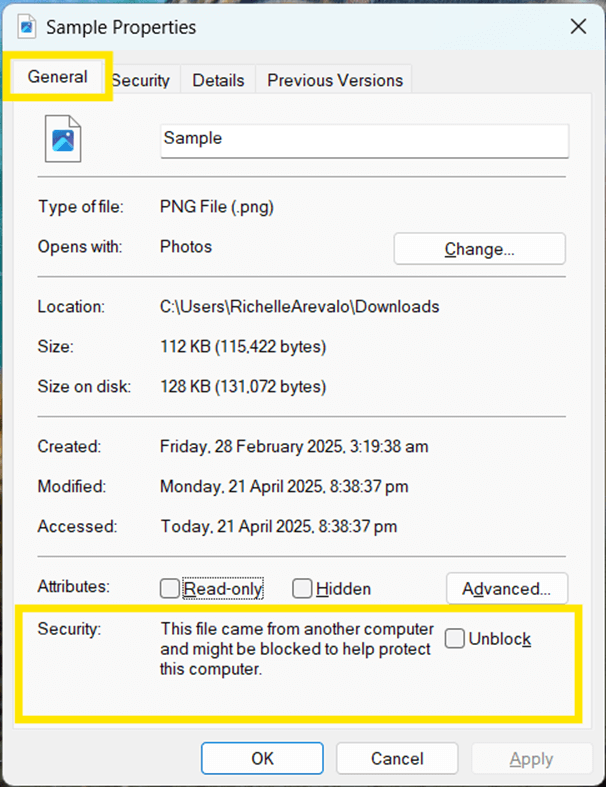
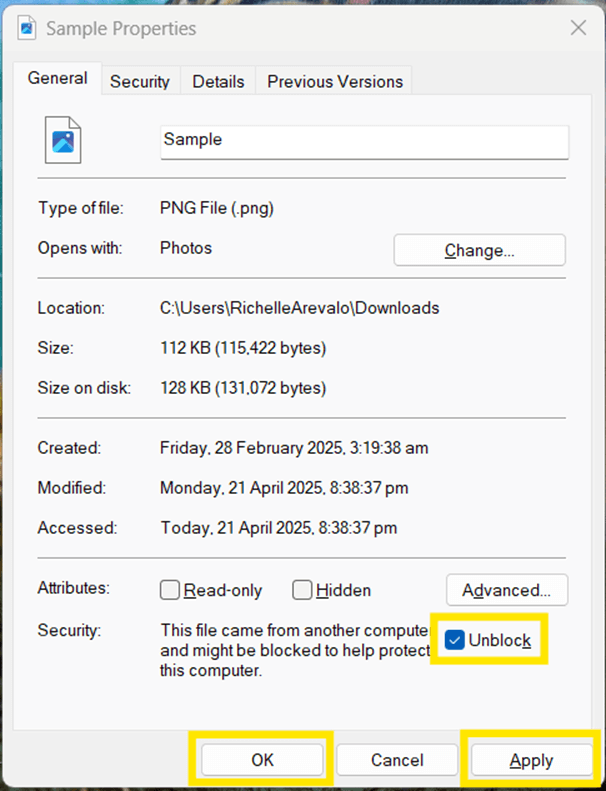
- Tick the Unblock checkbox, then tap Apply > OK.
Method 2: Run the app as an administrator via Command Prompt
Running an app as an administrator via Command Prompt grants it elevated access to your system. This can be risky if the app is untrusted, so make sure it comes from a reliable source or has been scanned for malware before proceeding.
📖 ALSO READ: How to Use Windows Defender to Scan for Malware
- Press Win + S to open the Windows search bar and type cmd.
- Once the Command Prompt is found, right-click and select Run as administrator.
- Confirm the User Account Control (UAC) prompt by clicking Yes.
- In the Command Prompt window, use the cd (change directory) command to go to the folder where your application is located.
- Example: cd C:\Path\To\Application
- Once in the correct directory, type the application’s name, then hit Enter.
- Example: application.exe
- The application should now run with a
Method 3: Disable SmartScreen temporarily
Disabling SmartScreen lowers your system security, so it’s not recommended for long-term use. Only use this method if you’re confident the app is safe, and make sure to re-enable SmartScreen immediately after running the app.
- Press Win + S to open the Windows search bar.
- Type Windows Security and hit Enter once found.
- Go to App & browser control from the left sidebar.
- Under Reputation-based protection, click Reputation-based protection settings.
- Toggle Off the options for the following:
- Check apps and files
- Potentially unwanted app blocking
- SmartScreen for Microsoft Edge
- SmartScreen for Microsoft Store apps
- Now, try running the previously blocked application again.
- Once the application has been successfully run or installed, go back to the Reputation-based protection settings and re-enable SmartScreen to continue protecting your system.
Method 4: Modify Local Group Policy (For Windows 10 Pro & Enterprise)
This method is recommended only for IT administrators and advanced users who manage trusted applications within enterprise systems.
- Press Win + R to open the Run Dialog box.
- Type gpedit.msc and hit Enter to open the Local Group Policy Editor.
- Navigate to Computer Configuration > Windows Settings > Security Settings > Local Policies > Security Options.
- Look in the right-hand pane for the User Account Control: Run all administrators in Admin Approval Mode policy.
- Double-click on it and select Disabled.
- Click Apply, then OK.
- Restart your computer for the changes to take effect.
- After rebooting, try running the previously blocked application again.
Bypass ‘This app has been blocked for your protection’ with caution
Windows blocks certain apps for security reasons using features like SmartScreen and UAC. You can bypass these restrictions by running the app as administrator, unblocking it via File Properties, or temporarily disabling SmartScreen. Advanced users can also modify Local Group Policy settings to manage app restrictions more precisely.
However, security should always come first. Only bypass these warnings if you fully trust the app’s source. Remember, these security measures exist to keep your system protected.