Key Points
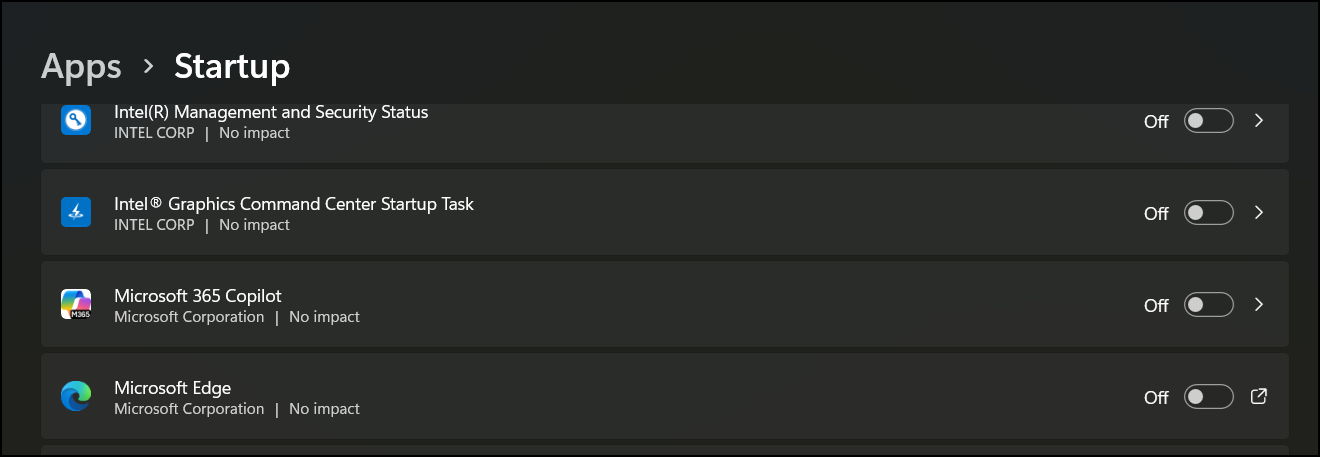
- Configure startup behavior via Windows Settings or Task Manager: Navigate to the Startup Apps menu or the Task Manager’s Startup tab to toggle off Microsoft Edge, preventing the application from launching a window immediately upon user sign-in.
- Disable Startup Boost and background processes: Access the internal Microsoft Edge System settings to toggle off Startup Boost and the option to continue running background extensions, which stops the browser from pre-loading resources or staying active after it is closed.
- Implement Registry Editor modifications for a hard block: Create or update DWORD values for StartupBoostEnabled, AllowPrelaunch, and PreventLaunchEdge within the Windows Registry to enforce a strict prevention of the browser’s auto-launch behavior on Home and Pro editions.
- Manage enterprise endpoints using Group Policy: Utilize Edge ADMX templates within the Local Group Policy Editor to disable the “Allow Microsoft Edge to pre-launch” policy, ensuring a streamlined startup experience across managed organizational units and workstations.
- Adjust Windows Sign-in options and Task Scheduler: Toggle off the “Automatically save my restartable apps” feature in Windows Account settings and disable MicrosoftEdgeUpdate entries in the Task Scheduler Library to prevent the OS from restoring the browser session after a reboot.
There are two main reasons why someone might want to prevent Edge from launching automatically every time a user signs into Windows. Firstly, it helps save resources and facilitates a faster startup process. Secondly, that someone is likely annoyed, aren’t they?
Either way, if you or someone isn’t a fan of how Microsoft Edge opens at startup on its own, check out this guide on how to disable this behavior.
💡 Note: These methods below works on both Windows 10 and Windows 11. While some menu labels or layouts may vary slightly between versions, all Registry edits, Group Policy paths, and startup management options behave the same across both operating systems.
Methods for preventing Microsoft Edge from opening on startup
Managing startup preferences helps streamline the user experience and boost productivity, but before all that, take these access and system requirements into consideration:
- Microsoft Edge (Chromium-based) must be installed.
- Administrative access is required for Registry or Group Policy configuration.
🥷 Note: Group Policy Editor is only available in Windows 10 or 11 Pro, Enterprise, and Education editions. Windows Home users can use the Registry Editor, Microsoft Edge settings, or the Task Manager instead.
🎥 Watch the video for “How to Disable Microsoft Edge from Launching at Startup in Windows”.
Here are the ways to update the startup preferences on a workstation or personal device:
Quick-Fix
| Method | Best For | Technical Level |
| Edge Internal Settings | Background processes | Easy |
| Task Manager / Windows Settings | Preventing the app window from opening | Easy |
| Registry Editor | Windows Home users (Hard block) | Advanced |
| Group Policy (GPO) | IT Admins / Enterprise management | Expert |
Method 1: Configure startup behavior via Settings (GUI)
For these steps, you’ll only need to make changes to the browser settings.
- Open Settings from Search or press Win + I.
- Navigate to Apps → Startup and look for Microsoft Edge.
- Toggle on or off to change startup preferences.
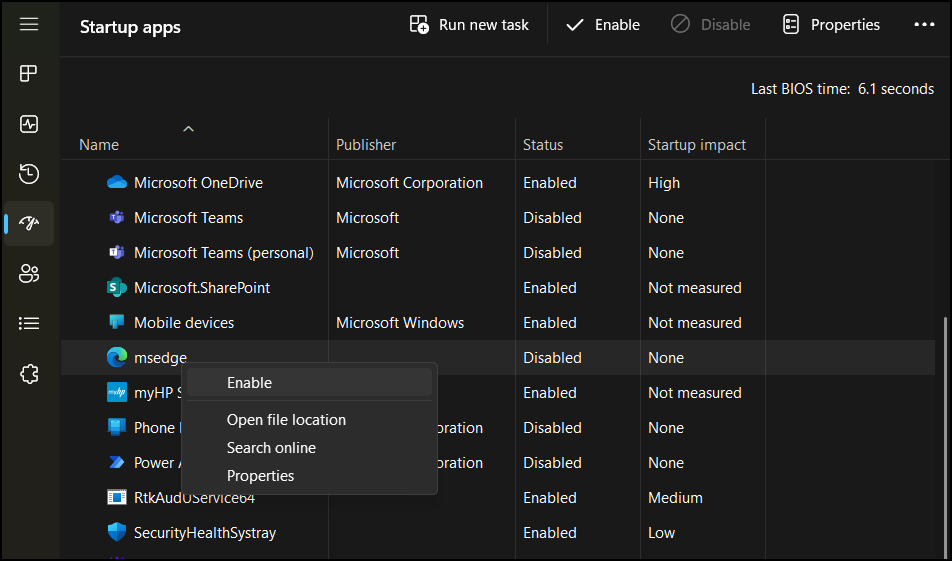
Method 2: Disable Edge from startup via Task Manager
Alternatively, the Task Manager provides another quick way to modify startup preferences.
- Press Ctrl + Shift + Esc to open the Task Manager.
- Go to the Startup tab.
- Look for Microsoft Edge in the list of programs.
- If Edge is listed, right-click on it and select Disable.
Method 2.5: Disable “Startup Boost” and Background Apps
Even if Edge is blocked from starting with Windows, its internal settings may override this to keep the browser “warm.”
- Open Microsoft Edge.
- Click the three dots (…) in the top-right corner and select Settings.
- Navigate to System and performance in the left sidebar.
- Toggle Off “Startup Boost.”
- Toggle Off “Continue running background extensions and apps when Microsoft Edge is closed.”
Method 3: Registry Editor (Prevent AutoLaunch Behavior)
⚠️Warning: Making unwanted changes to the Registry Editor can affect your system’s performance and stability. Learn how to back up the Windows Registry to save and restore the database when needed.
- Press Win + R, type regedit in the dialog box, and tap OK to open the Registry Editor.
- Navigate to Policy Path then copy and paste this into the Registry address bar:
Computer\HKEY_LOCAL_MACHINE\SOFTWARE\Policies\Microsoft\Edge
Note: If the “Edge” folder does not exist, right-click the “Microsoft” folder, select New > Key, and name it Edge.
- Right-click in the right pane, select New > DWORD (32-bit) Value, name it StartupBoostEnabled, and set the Value data to 0.
- Create another DWORD (32-bit) Value, name it AllowPrelaunch, and set the Value data to 0.
- Create one final DWORD (32-bit) Value, name it PreventLaunchEdge, and set the Value data to 1.
- Restart your computer to apply the changes.
Method 4: Configure via Group Policy (Enterprise Control)
For this method, you’ll need Edge ADMX templates to be imported into Group Policy.
- Press Win + R, type gpedit.msc in the dialog box, and tap OK to open Local Group Policy.
- Navigate to Computer → User Configuration → Administrative Templates → Microsoft Edge.
- In the right column, find the Allow Microsoft Edge to pre-launch at Windows startup, when the system is idle, and each time Microsoft Edge is closed policy, then open it.
- In the pop-up window, select Disabled, click Apply, then click OK to confirm.
You may need to run gpupdate /force to enforce the new settings in endpoint devices. Check out this guide on how to enforce Group Policy updates.
Additional considerations when disabling Edge on startup
Here are some behaviors that might force Edge to launch automatically despite previous changes to startup preferences.
- Windows Spotlight or News Feed might launch Edge by default as it’s tied to Search or Taskbar widget results.
- Review Task Scheduler for any MicrosoftEdgeUpdate entries set to trigger on login.
- New settings may need to be set for each user profile or via GPO in multi-user environments.
Check Windows Sign-in Options
Windows may be “restoring” Edge rather than “starting” it. To stop this:
- Open Windows Settings (Win + I).
- Go to Accounts → Sign-in options.
Under “Additional settings,” toggle Off the option: “Automatically save my restartable apps and restart them when I sign back in.”
Looking out for these related behaviors or possible gaps will help you enforce the new startup policy more seamlessly across all user endpoints.
Practical benefits of disabling Edge on startup
In general, managing startup preferences is a solid IT practice for streamlining user experience and workflow in managed environments. It can also limit log-in delays in production and unintended browser access in kiosk environments.
Overall, this policy warrants strong consideration, especially if you need to manage startup resources for certain endpoints or tasks. Individual users and enterprises may also consider limiting Microsoft Edge interactions if it’s not the default or preferred browser.
Pro-Tip: If Edge still reappears after an update, open Task Scheduler, click on the Task Scheduler Library, and look for MicrosoftEdgeUpdateTask. Right-click and Disable these tasks to prevent the update service from triggering a browser launch.